
How to duplicate a section of a course
- Edit the product and open Curriculum.
- Hover over the section title and click the copy icon (Duplicate section with its lessons).
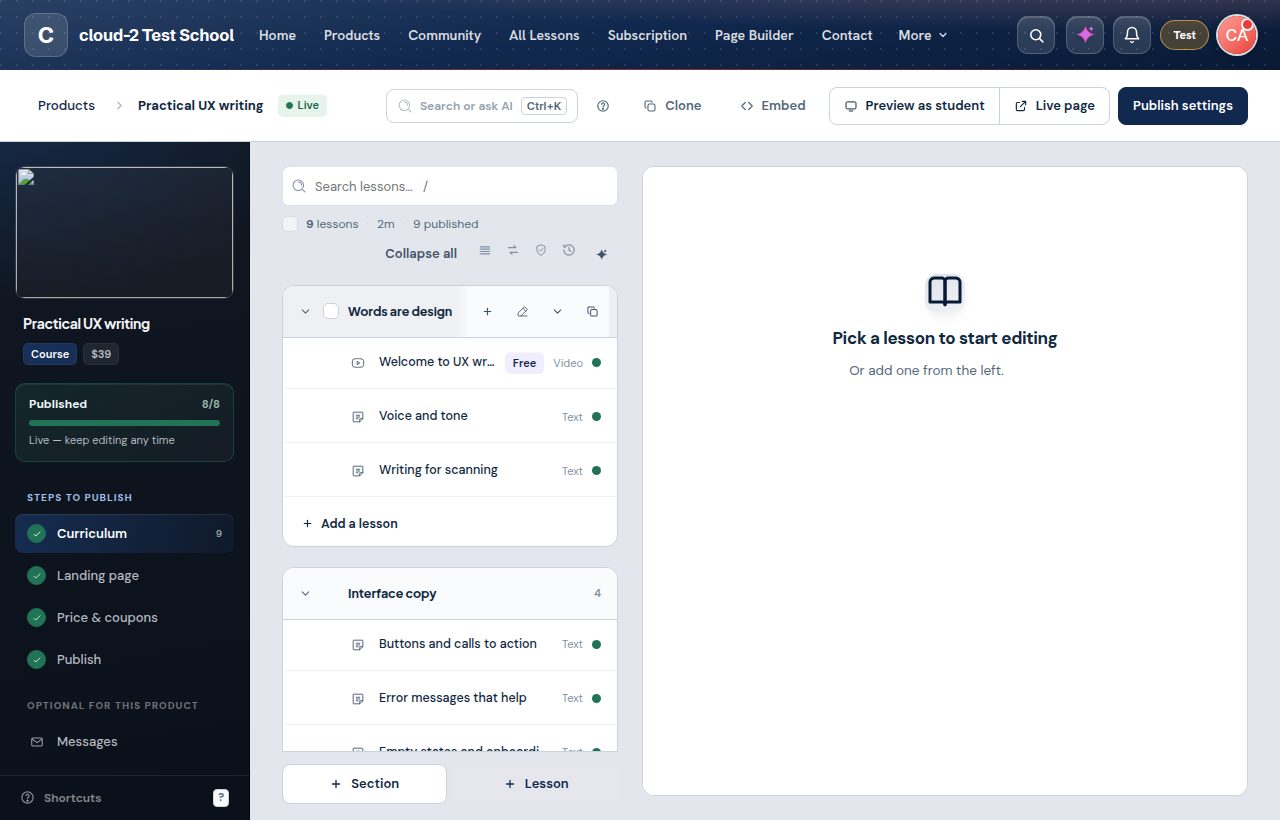
The copy appears right below the original, with the same title and lessons. Rename it if you like.
- Videos, downloads and lesson texts are copied. Each copy has its own files, so deleting one never affects the other.
- Student progress and comments are not copied.
- The course completion lesson is not copied.
- If a video in the section is still processing, wait until it is done, then duplicate.
To copy a whole course, see course cloning.