
How to add students to a group automatically when they enroll
Choose a group on a product, and every student who enrolls in it is added to that group. Their other groups are kept.
- Create the group first under Students > Groups.
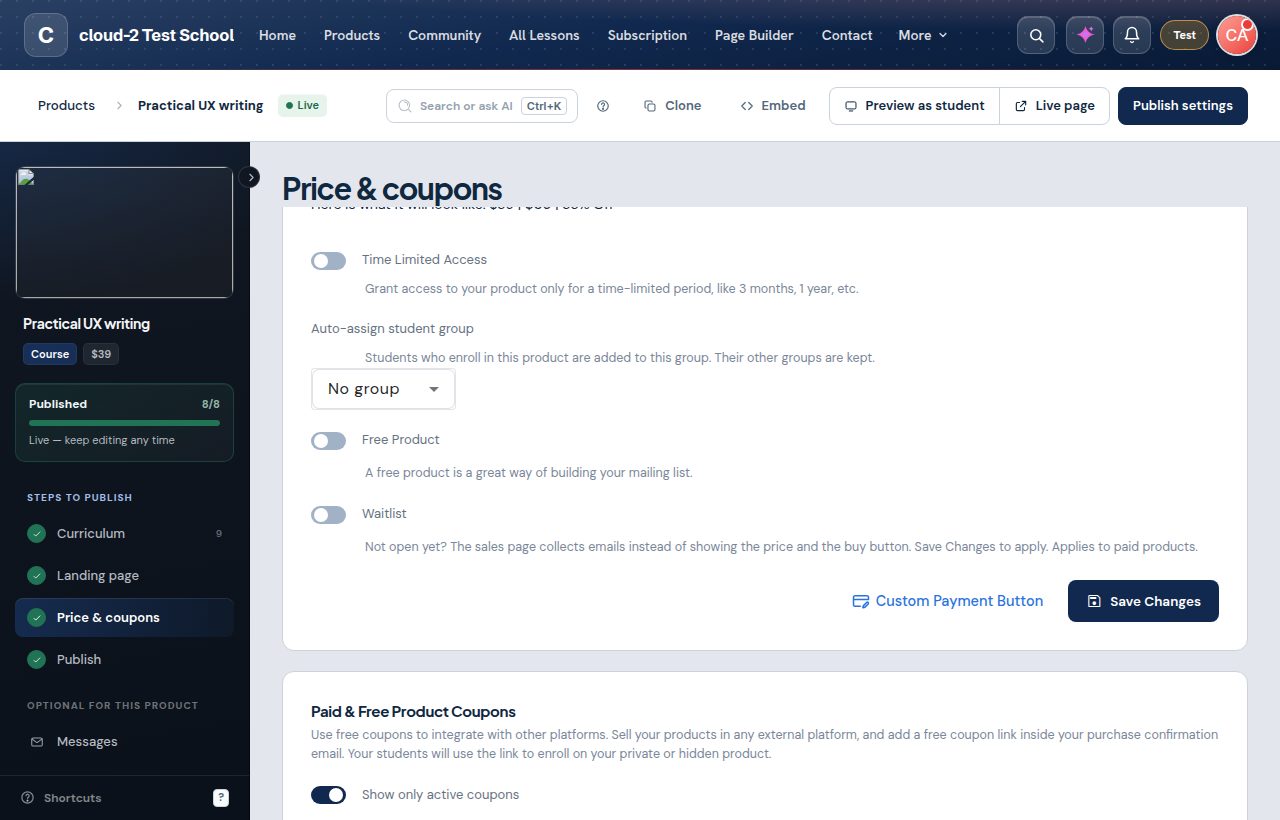
- Edit the product and open Price & coupons.
- Under Auto-assign student group, pick the group.
- Click Save Changes.
Students are added when they buy with Stripe or PayPal, redeem a free coupon, or when you enroll them yourself from their student page. Buying a bundle does not add the group. If you delete the group, nothing is added, and the enrollment still works.
See also: How to end a group's access to a course on a date.