
How to give temporary access to your courses
Paid products give lifetime access by default. Time Limited Access ends a student's access after a set period.
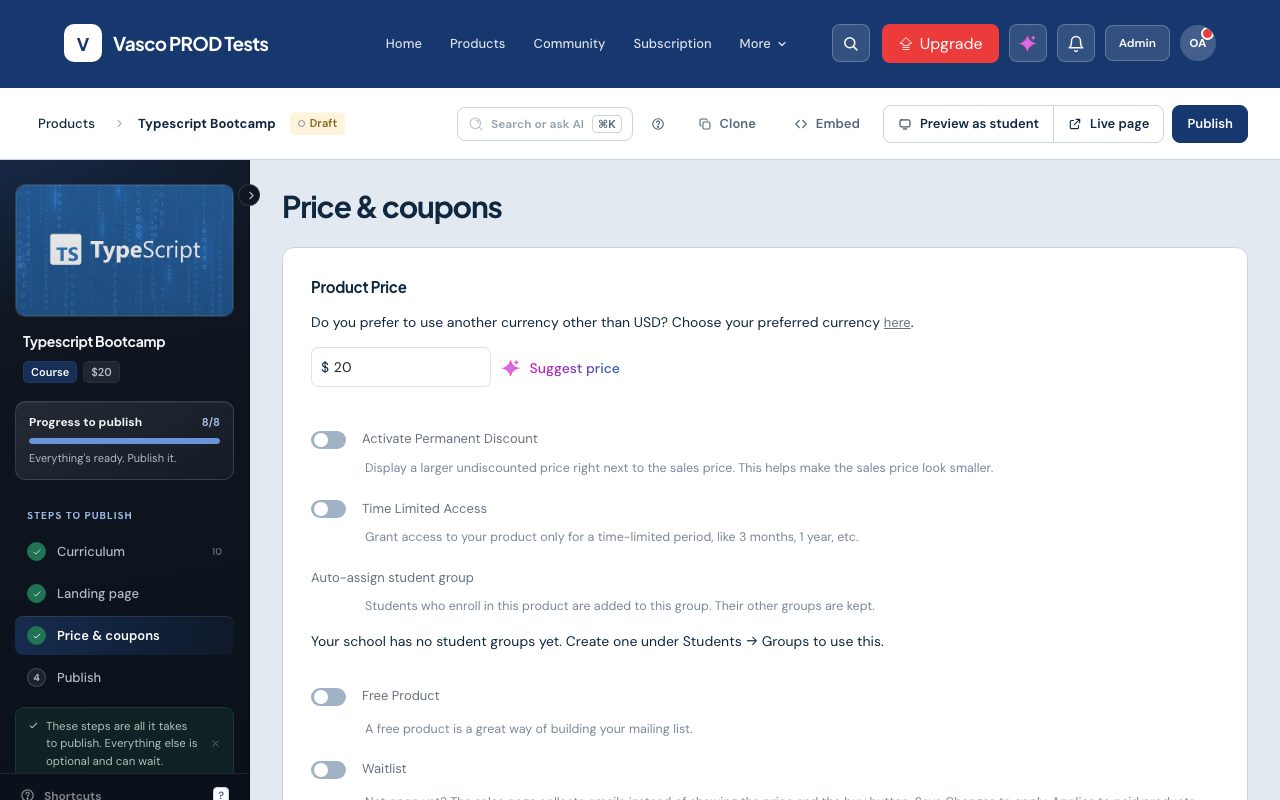
Set it up
- Go to Products, click Edit and open Price and Coupons.
- Tick Time Limited Access and set the period.
- Click Save Changes.
After purchase, students see a countdown on the sales page.
- It only works on paid products, not free, hidden or private ones.
- Changing the period affects new purchases only.
- Students you enroll manually get lifetime access until you remove it.
Check a student's expiry
In Admin > Manage Students, click the student and scroll to Courses to see when each expires.
When access expires
A daily check runs at 7 AM UTC+0. Access is removed on the expiry day, and the student gets an email with a link to buy again.
Before that, students get reminder emails 7 days and 1 day before.
External payments
With an external payment button and a price on the checkout page, you can set a time limit. Expiry isn't automatic, so remove access yourself in Manage Students.