
How to Optimize Your Course Sales Page on OnlineCourseHost.com
Design a product's sales page (landing page) in Products > Edit > Landing page.
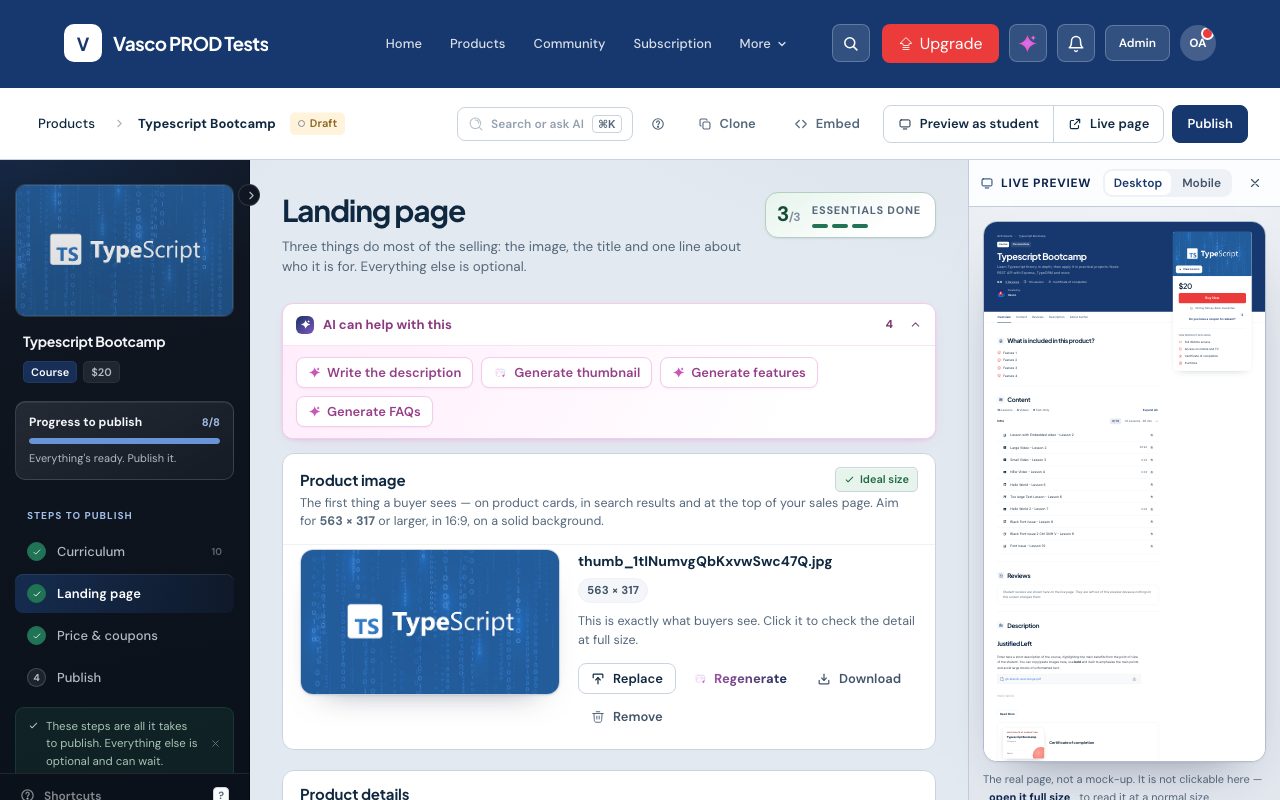
Choose the image
Click the pencil icon on the image to upload one or generate it with AI (recommended 563x317 px, no transparent background). Download saves the current image.
Product details
Enter the page title, subtitle and card description. AI suggestions can write them for you (AI assistant).
Visibility and access
- Make this a private product: visible, but enrolment only by you or a free coupon link.
- Make this a hidden product: not visible to the public.
More page options
- Don't mention that it's a lifetime access
- Don't mention the product total duration
- Manage reviews: see review system.
- Manually set product duration: use it when videos are hosted elsewhere or the product is audio. Click Save changes.
- Exclude from subscription: sell it on its own.
- Hide gift this product button
- Hide redeem coupon code field
- Hide live sessions and webinars reminders
- Hide subscribe to access all products button
Authors
Click Add existing or Create new. A page needs at least one author before it can go live.
Categories
Click Choose categories to pick or manage categories. See categories.
Features
Add at least four features, or click Generate features. Click Save changes.
Trust stats
Add up to four stats. Click Save stats.
Sales page extras
Add hero badges, credential chips and certificate blurbs. Click Save extras.
Long description
Describe topics, goals and outcomes. Use Regenerate for an AI rewrite, then Save description. Tips: writing a course description.
FAQs
Add questions and answers, or click Generate FAQs. They show at the bottom of the page. Click Save all to save.