
How to set up a review system in your course platform
Reviews let students rate your products. Set them up, enable them per product, then approve what comes in.
Set up messages
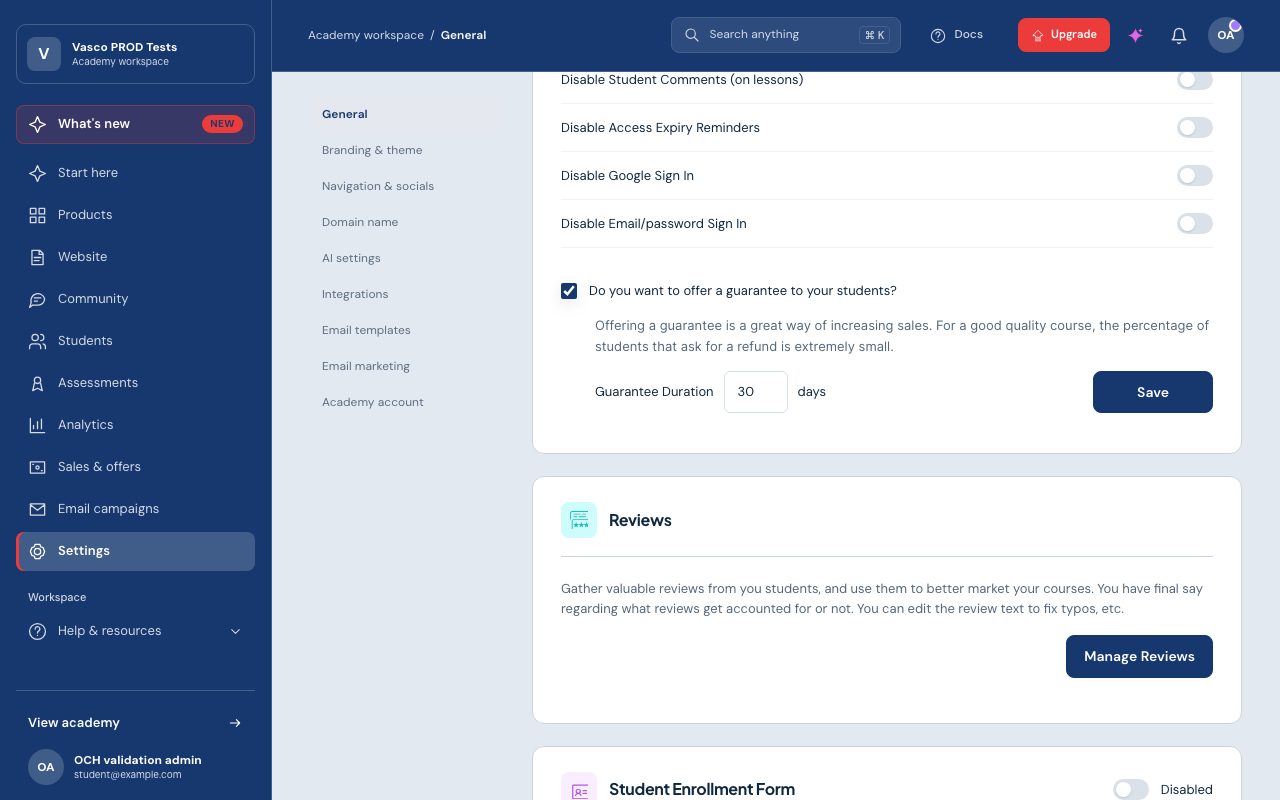
Go to Admin > General Settings, scroll to Reviews, click Manage Reviews, then Settings.
Review Pop-up Message (shown when a student is about to review):
- Message: the prompt asking for a review.
- Placeholder Text: a nudge to leave one.
- Review Text Box: the default text inside the box.
Message After Review: fill in the message and caption shown after a review is sent.
To make review text or stars optional, tick the matching box (not both: an empty review can't be submitted; with neither ticked, both are required). Each section has a preview. Click Save when done.
Enable reviews
Back on the reviews page, tick the box next to each product. Enable All and Disable All apply to every product. The page also shows pending and approved counts and ratings. Refresh the browser after changing this.
Where reviews show
- Product cards on the landing page
- The top menu of the sales page
- Before the description on the sales page
- In the course player, at the top and under each lesson
Students can click I will do it later to skip.
Approve reviews
Reviews must be approved before other students see them.
- Go to Admin > General Settings > Reviews and click Reviews next to a product (pending counts show on the title).
- Click Approved on a review, or Approve All.
Click Edit to answer a review:
- Review Text: use it only to fix simple grammar, not to change the review.
- AI Draft Response: an AI reply you can edit and save.
- Improve AI: edit the AI's reply or your own.
- Status: approve or disapprove.
- Save: saves your changes.
Per-product options
Go to Products, then Edit, then Landing Page, scroll to Extra Options, and click Manage Reviews.
- Hide the reviews from the course page: hides reviews everywhere they show.
- Stop collecting reviews: keeps existing reviews, but students are no longer asked.
- Minimum number of reviews before displaying: hides reviews and stars until the product has at least that many.
Good to know
- You get an email for each new review.
- Each student has one review per product. A new one overwrites the old.
- Totals, ratings and pending counts are recalculated daily around 9 am GMT.
- Reviews on an original aren't shown on its clones.
- Students get the pop-up at the last lesson of each section until they review. Three sections means three pop-ups.