
Mixed lessons: text, videos, images, files, quiz questions and embeds in one lesson
A Mixed Lesson lets you build one lesson from blocks, in any order you like: some text, then a video, an image, a file to download, a quick quiz question to check understanding, and an embedded Google Slides deck or Canva design. Students see the blocks one after the other, on a computer or a phone.
Create a mixed lesson
- Open your course, go to Curriculum and click Add a lesson in a section.
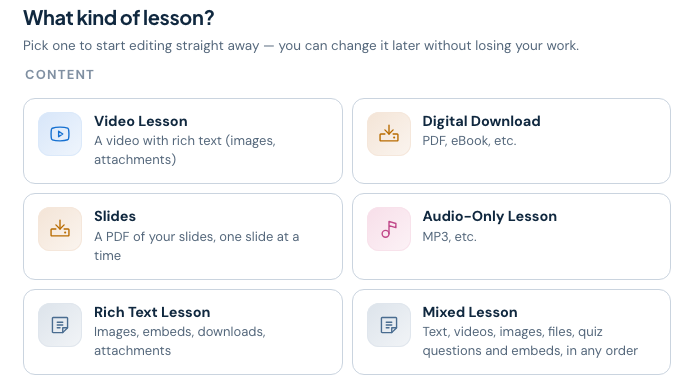
- Under What kind of lesson?, choose Mixed Lesson.
- Give the lesson a title, add your blocks (below) and click Save.
Add, move and delete blocks
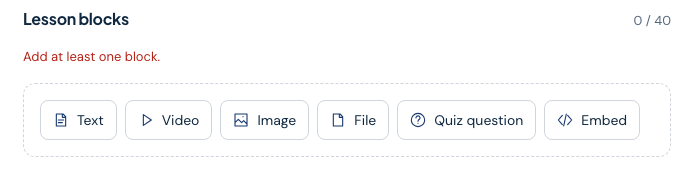
Under Lesson blocks, click the kind of block you want to add: Text, Video, Image, File, Quiz question or Embed. A lesson can have up to 40 blocks; the counter on the right shows how many you have.
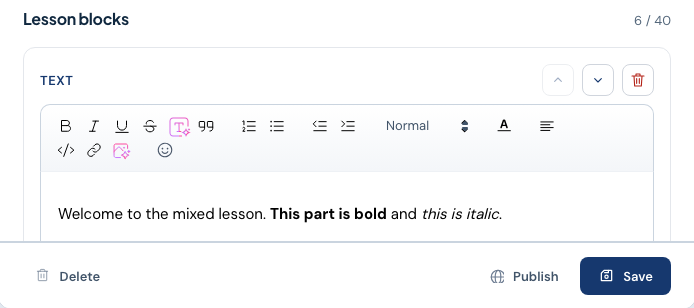
Each block has three buttons in its top right corner: the up and down arrows move it, and the trash button removes it. Click Save when you're done.
The blocks
- Text: the usual text editor (bold, italic, lists, links, emojis and more), up to 20,000 characters per block.
- Video: either the lesson's uploaded video (an MP4 or MOV file, one per lesson; it shows Uploading…, then Processing…, then Ready), or a YouTube, Vimeo, Loom or Wistia link. Use links when you want more than one video in the lesson.
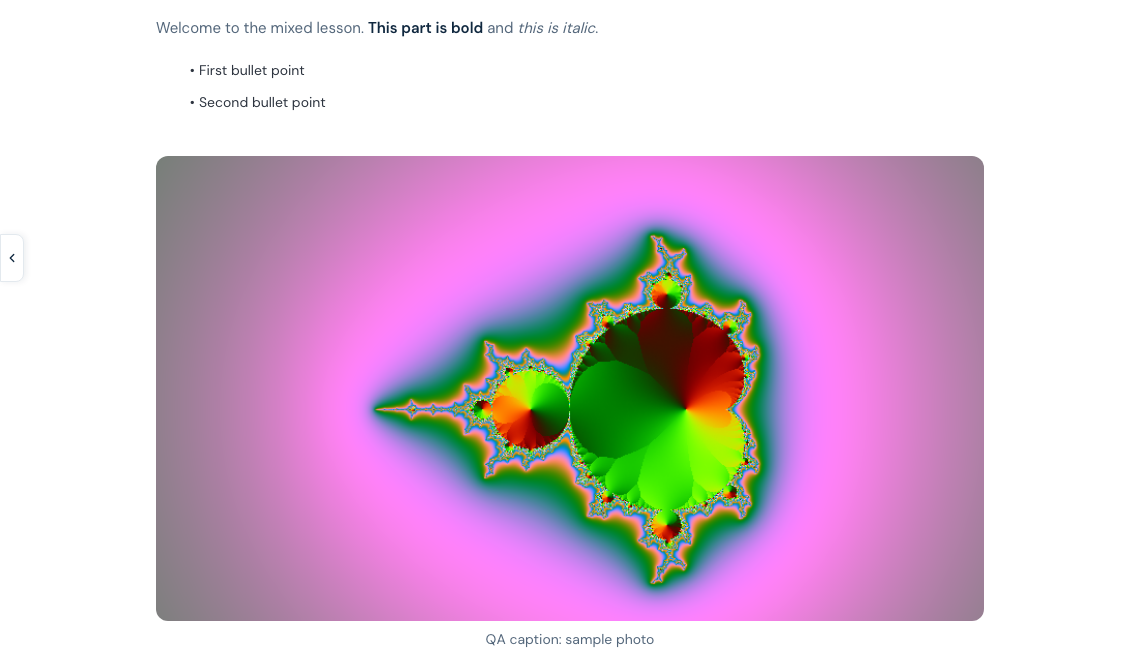
- Image: upload an image (up to 500 KB). Describe it in one sentence for students who use a screen reader, and add a caption if you like.
- File: choose one of the lesson's files, or upload a new one (up to 2 GB). Students get a Download button.
- Quiz question: write the question, add the answers with Add an answer, and mark the correct one with the round button. Students pick an answer and click Check answer: they see Correct! or Not quite, try again. It's for practice: the correct answer is checked in the student's browser, so it isn't secret and isn't graded. For graded tests, use a Graded Assessment lesson.
- Embed: paste the share link of a Google Doc, Slides, Sheet or Form, a Canva design, a Figma file, a Miro board, a Typeform, a Loom video, a Spotify or SoundCloud track, or a Google Maps embed. If a link can't be embedded, the block says so: use the service's share link.
Publish the lesson
The Publish button at the bottom of the lesson appears once every block is complete. Until then, the editor shows what's missing above the blocks (for example Block 3: choose a file.). When the lesson plays its own uploaded video, Publish also waits until the video says Ready, so students never get an empty player.
What your students see
The blocks appear in your order, full width, and work on phones too. Videos play in the lesson, images show their caption, files have a Download button, and embeds open right in the page. Students mark the lesson complete as usual, and it counts in their course progress like any other lesson.
Good to know
- Your existing lessons don't change. A mixed lesson is a new kind of lesson next to the others.
- The Free Lesson and Make This Lesson A Prerequisite switches are at the top of the lesson, as for other lessons.