
Give a student free access to a course (manual enrolment)
You can enrol any student in a course yourself, without a payment: for example a team member, a reviewer, a scholarship or a customer you want to make up to.
If the student already has an account
- Open Students in your admin area.
- Find the student (use the search box) and click View on their row.
- Open the Enrollments tab.
- Click + Enroll, tick the course or courses (you can search by name), then click + Enroll at the bottom of the list.
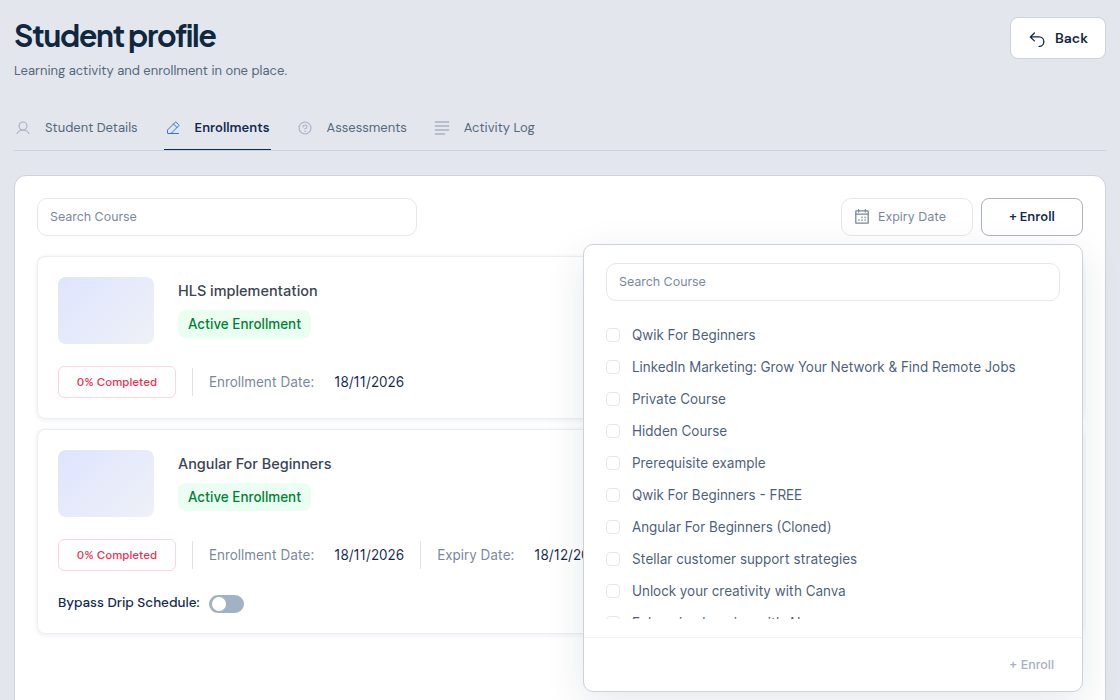
The course appears in the student's list with Active Enrollment, and they can start it straight away. For a course with a drip schedule, the Bypass Drip Schedule switch on that enrolment opens every lesson at once for this student.
If the student doesn't have an account yet
- In Students, click Add student.
- Enter their full name and email and create the student. They get a welcome email with a link to set their password (unless you switched that email off in Email templates).
- Then enrol them as above: View › Enrollments › + Enroll.
Good to know
- School admins, and team members whose role allows managing students, can enrol students this way.
- A student who is already enrolled in a course doesn't see it in the + Enroll list.
- To give many students free access at once, you can import them with Import on the Students page.