
How to add your calendar link for one-on-one coaching sessions
Let students book one-on-one time with you from a lesson.
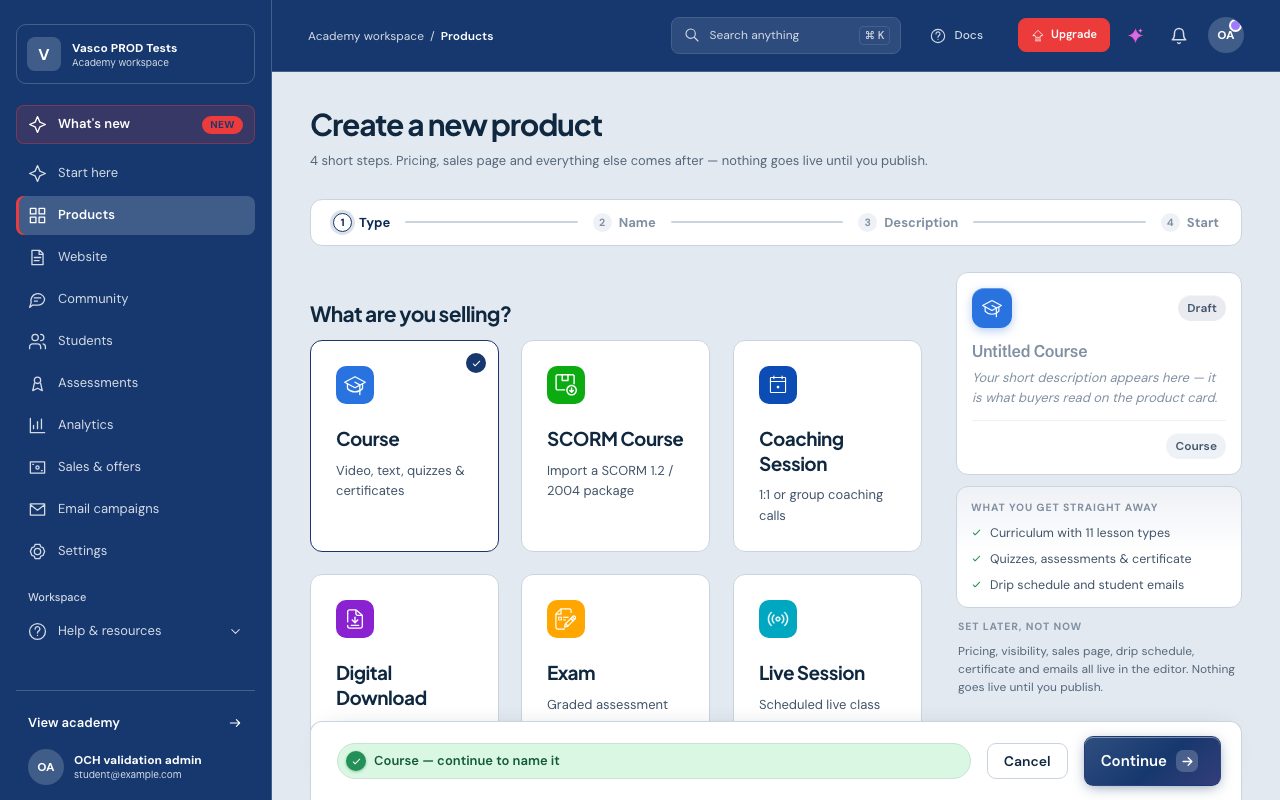
- Open Products and click Create New Product, choose Coaching Session and click Continue. Or edit a product, click Add Lesson and choose Coaching Session.
- Enter a lesson title, lesson description and the booking link. Any calendar link works, for example Calendly or Google Calendar.
- Click Create Manually or use AI.
- On the booking page, choose whether to show the calendar inside the course player, add questions for students, and add booking instructions.
- Customize the button text (up to 25 characters) and colors. A preview shows on the side.
- Click Save, then Publish.
Students' answers are emailed to you with their name and email, and show under the lesson. Students click the button to book in your calendar, or book inside the course player.