
How to activate a custom domain name for DNS Providers with ALIAS Records
Use these steps if your DNS provider supports ALIAS records and your domain is not a subdomain. A custom domain needs the Pro plan or higher (Pro, Unlimited or Enterprise).
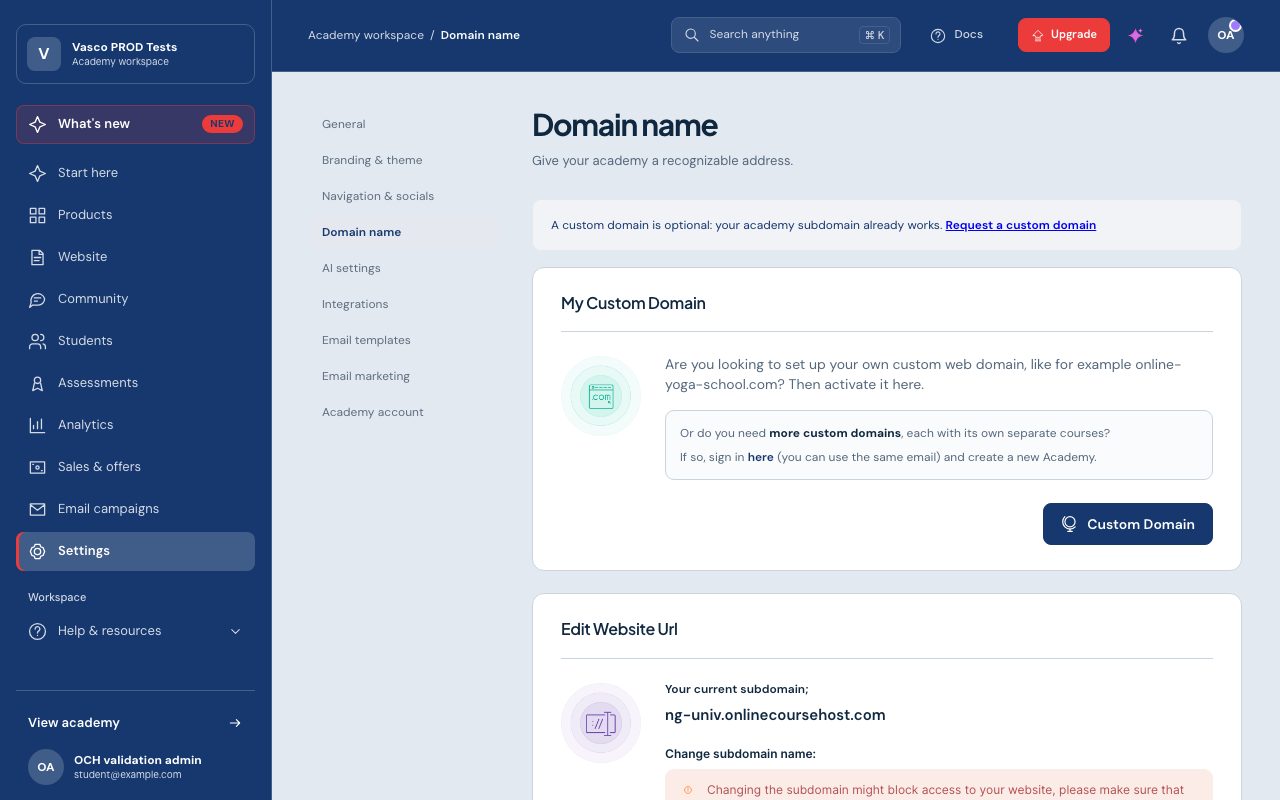
Step 1: Choose your domain
- Open Settings in the admin menu, then Domain name.
- Click Custom Domain.
- Paste your domain and confirm you own it.
- Click Start Activation.
Step 2: Activate your free SSL certificate
- On the next page, copy the CNAME records shown.
- Add them in your domain registrar's DNS manager. Set the TTL to 60 seconds.
- Don't paste the full name. Stop before the dot that separates your domain from the string of letters and numbers. Your DNS manager already adds the domain.
- Wait a few minutes, then click check certificate.
Step 3: Activate your website
- A page with a new ALIAS record opens.
- Add it in your DNS manager, using @ as the name.
- Wait a few minutes, then click check website.
When the records have propagated, you'll see a message that your domain is active.
Step 4: Test your domain
Load your domain in the browser. It should open securely.